
Netdata provides accurate performance monitoring through extensible web dashboards that visualize the processes and services on your Linux systems. It monitors metrics about CPU, memory, disks, networks, processes, and more.
Netdata needs no extra configuration necessary once installed, but provides significant customization. The efficiency and speed of the application aims to be comparable to native console administration tools such as vmstat, iostat, and htop .
The steps in this tutorial cover everything you need to successfully set up one Ubuntu 16.04 server running Netdata using its built-in web server or, optionally, using Nginx.
Before we install anything, make sure the system package index is up to date.
shellsudo apt-get update
Next, install Netdata’s dependencies, which include the gcc (a C compiler), GNU Autoconf tools, GUID management, and compression libraries for Netdata’s internal web server.
shellsudo apt-get install zlib1g-dev uuid-dev libmnl-dev gcc make autoconf autoconf-archive autogen automake pkg-config curl
The next set of packages are optional but recommended by Netdata, and include Python, some Python packages, and Node.JS. The stable version of Node.js bundled with the system package manager is fine for Netdata’s requirements. Install these next.
shellsudo apt-get install python python-yaml python-mysqldb python-psycopg2 nodejs lm-sensors netcat
To install Netdata itself, we must use the project’s GitHub repository. Clone the Netdata repository into your home directory.
shellgit clone https://github.com/firehol/netdata.git --depth=1 ~/netdata
Move to the newly cloned directory.
shellcd ~/netdata
Now build and install the application using the netdata-installer.sh shell script in this directory. Make sure to append sudo here, otherwise the way in which Netdata collects system data (through data collectors) would not function correctly.
shellsudo ./netdata-installer.sh
The output you’ll see at first contains information on where Netdata will store all of it’s components. You can read through these so you are a bit more familiar with how the program is spread out over the filesystem after its installation.
plain textInstaller Output. . .It will be installed at these locations:- the daemon at /usr/sbin/netdata- config files at /etc/netdata- web files at /usr/share/netdata- plugins at /usr/libexec/netdata- cache files at /var/cache/netdata- db files at /var/lib/netdata- log files at /var/log/netdata- pid file at /var/run. . .
Press ENTER to continue with the installation. After a moment, at the end of the output chain, you’ll see the following message:
plain text. . .[secondary_label Installer Output]^|.-. .-. .-. .-. .-. . netdata .-. .-| '-' '-' '-' '-' '-' is installed and running now! -' '-'+----+-----+-----+-----+-----+-----+-----+-----+-----+-----+-----+-----+--->enjoy real-time performance and health monitoring...
Netdata is now installed and running successfully, and will run automatically upon rebooting the server as well.
Open port 19999 for Netdata’s internal web server.
shellsudo ufw allow 19999/tcp
At this point, you can view the default dashboard by visiting http://your_server_ip:19999/ in your favorite browser. You’ll see an overview of the system’s live metrics. This is a good check that everything’s working so far, but before we explore the GUI, let’s customize Netdata a little.
You can view Netdata’s current configuration in your browser by visiting http://your_server_ip:19999/netdata.conf.
You will see here that all (or most) of the configurable options are commented out (i.e. prefaced with a #). This is because Netdata’s configuration works by using a set of assumed defaults. Any disabled settings use Netdata’s default value; if a setting is uncommented, the value specified will override the default. This keeps the configuration file contained to only what you’ve modified.
Back on your server, the configuration file itself is /etc/netdata/netdata.conf . The option we’ll customize in this tutorial is the history parameter. This controls the maximum size of the memory database in use by Netdata.
Here is where you will have to decide how much RAM you want to dedicate to Netdata, or how much time you want to keep the recorded chart data for before it is lost:
Bear in mind that the above estimations are based upon the number of charts in use by the stock dashboard. Removing or adding custom charts in the future will influence these estimates.
Open up Netdata’s main configuration file with nano or your favorite text editor.
shellsudo nano /etc/netdata/netdata.conf
Locate the history option in the [global] section.
/etc/netdata/netdata.conf
plain text. . .[global]# glibc malloc arena max for plugins = 1. . .# hostname = test-netdata# history = 3600# update every = 1. . .
Replace the 3600 value to the one you decided on before. Here, we’re using 14400, which gives us 4 hours of data retention. Make sure to also uncomment the line by deleting the # symbol so this option is no longer ignored by Netdata.
/etc/netdata/netdata.conf
plain text. . .[global]# glibc malloc arena max for plugins = 1. . .# hostname = test-netdatahistory = 14400# update every = 1. . .
Save and close the file after making this change.
While this modification likely increased the amount of RAM that Netdata will use, the next modification we’ll implement in the next step should reduce it significantly.
Even though Netdata runs and works straight out of the box, there are more modifications we can make to the way Netdata uses system resources which will speed up and optimize its performance. We’ll start with enabling Kernel Same-page Merging, or KSM for short. The Netdata developers estimate this reduces Netdata’s memory usage by 40-60%.
Once enabled, the KSM daemon periodically scans memory, looking for pages of identical content that can be replaced by a single write-protected page. In this context, it allows the sharing of identical memory pages amongst different processes or programs running on the system. This reduces creation of unnecessary duplicate memory content.
To permanently enable this aspect of the Linux system kernel, open the /etc/rc.local file with a text editor.
shellsudo nano /etc/rc.local
This /etc/rc.local file or run control file is executed after all other normal Linux system services and processes are started. It is useful for specifying custom services — or, in our case, for enabling KSM at server run time.
Add the two commands highlighted below to the end of the file, before the last exit 0 line, as shown here:
/etc/rc.local
plain text#!/bin/sh -e## rc.local## This script is executed at the end of each multiuser runlevel.# Make sure that the script will "exit 0" on success or any other# value on error.## In order to enable or disable this script just change the execution# bits.## By default this script does nothing.echo 1 > /sys/kernel/mm/ksm/runecho 1000 > /sys/kernel/mm/ksm/sleep_millisecsexit 0
The first command adds a 1 into the run KSM kernel file, which enables the feature. The second command tells the the KSM daemon to run once per second and evaluate 100 pages for de-duplication.
Once you save and close the file, KSM will now be enabled the next time the server reboots, and persist through future reboots. To enable it for the rest of this server’s current uptime, you need to run the two commands you added to rc.local manually on the command line.
First, initiate and enter a new shell session as the server’s root user by using the -s flag with sudo. This is necessary because the two commands from earlier use output redirection (via the > operator) and need to be executed by a root shell to succeed.
shellsudo -s
Now enter the two commands from before:
shellecho 1 > /sys/kernel/mm/ksm/runecho 1000 > /sys/kernel/mm/ksm/sleep_millisecs
Then, leave the root shell and return your normal shell session.
shellexit
Finally, to apply all the changes we have made in this step and the step before this, we must restart Netdata.
shellsudo systemctl restart netdata
You can verify that KSM is now enabled by looking for the newly added active KSM chart in the Netdata dashboard. This is found in the menu tree on the right, under Memory > Memory Deduper.
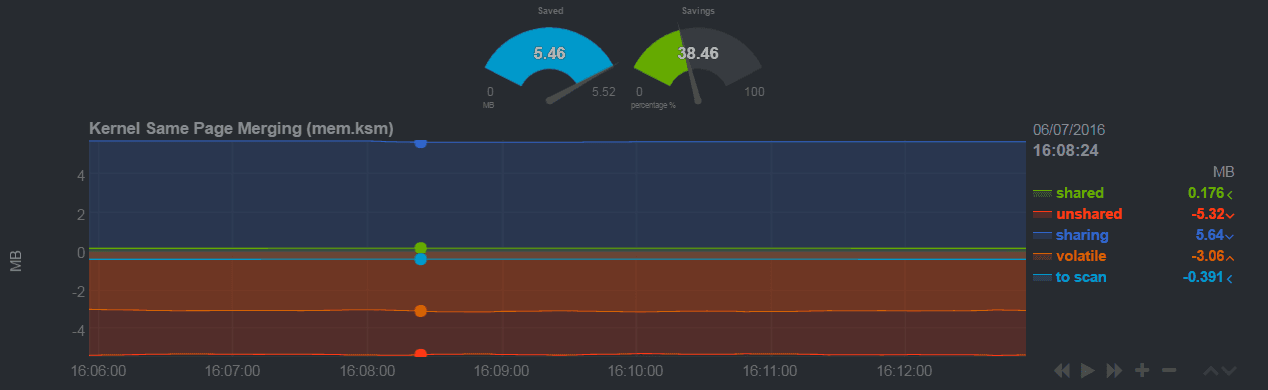
Now we know that the dashboard and KSM are working, it’s worth granting access to the dashboard through a web server like Nginx instead of the built-in web server. This isn’t completely necessary, but it is recommended, so follow the next step to set it up.
Hosting Netdata via Nginx makes it easier to secure access to the dashboard and also allows you to point to other servers’ Netdata dashboards in the future, should you need to.
You’ll also need to install the apache2-utils package. This package contains the htpasswd program, which we’re going to need later on for securing access to the dashboard page.
shellsudo apt-get install apache2-utils
Next, create a new Nginx host configuration file. Note that here, we’re using a file in the /conf.d directory, but you could use /sites-available and /sites-enabled if you’re using Nginx for things other than Netdata.
shellsudo nano /etc/nginx/conf.d/default.conf
This configuration file will tell Nginx to proxy incoming requests for the dashboard page. We’ll also add a simple authentication prompt so only people with the correct username and password can access it.
Below is the entire configuration file for you to copy and paste. Change the two red highlighted items for the listen and server_name directives above to your server’s IP address and allocated domain name, respectively. Take care to include the terminating ; at the end of each. If you don’t have a domain name, you can leave the server_name directive as example.com .
/etc/nginx/conf.d/default.conf
plain textupstream netdata-backend {server 127.0.0.1:19999;keepalive 64;}server {listenyour_server_ip:80;server_nameexample.com;auth_basic "Authentication Required";auth_basic_user_file netdata-access;location / {proxy_set_header X-Forwarded-Host $host;proxy_set_header X-Forwarded-Server $host;proxy_set_header X-Forwarded-For $proxy_add_x_forwarded_for;proxy_pass http://netdata-backend;proxy_http_version 1.1;proxy_pass_request_headers on;proxy_set_header Connection "keep-alive";proxy_store off;}}
Once you are certain your own file matches this code block, you can save and exit to return to the command prompt.
Let’s explain this file so you understand what it’s doing. This is the first section:
/etc/nginx/conf.d/default.conf
plain textupstream netdata-backend {server 127.0.0.1:19999;keepalive 64;}
This upstream module named as netdata-backend targets the built-in Netdata web server by using the server’s loopback address, 127.0.0.1, and Netdata’s port, 19999. A keepalive directive sets the maximum number of upstream idle connections that can remain open at any given time (for each Nginx worker process). This upstream module definition is required later on by the proxy_pass directive.
Directly after this is the main server block.
/etc/nginx/conf.d/default.conf
plain textserver {listenyour_server_ip:80;server_nameexample.com;auth_basic "Authentication Required";auth_basic_user_file netdata-access;
The first two line in the block defines the external IP address Nginx should listen for when clients attempt to connect. The server_name directive tells Nginx to run this server block when a client uses the specified domain name.
The last two lines in this snippet set up the simple HTTP username and password authentication. It does this using the auth_basic module to display a username and password prompt. You can customize the message for the prompt; here, it’s set to Authentication Required. auth_basic_user_file designates a file name and location to store the login credentials of the authentication prompt, created later on in this step.
The last location block, nested inside the server block, handles the proxying and passing on of incoming requests to Nginx.
/etc/nginx/conf.d/default.conf
plain textlocation / {proxy_set_header X-Forwarded-Host $host;proxy_set_header X-Forwarded-Server $host;proxy_set_header X-Forwarded-For $proxy_add_x_forwarded_for;proxy_pass http://netdata-backend;proxy_http_version 1.1;proxy_pass_request_headers on;proxy_set_header Connection "keep-alive";proxy_store off;}}
In summary here, this code is what passes client requests to the Netdata web server, and in turn the dashboard. The proxy_pass directive line refers back to the upstream module at the start of the file must point to it by name, netdata-backend.
If you haven’t already, you can save and close this configuration file. Here is where the htpasswd program from the apache2-utils package helps us create the user login credentials for the dashboard login prompt.
First, we’ll create a username and password. Run the following command, replacing sammy with whichever username you’d like to use in Netdata. When prompted, enter the password you’d like to use.
shellsudo htpasswd -c /etc/nginx/netdata-accesssammy
This creates a file at /etc/nginx/netdata-access that contains the username and password you provided. The generated password is encrypted within the file, so it cannot be seen as plain text.
Restart Nginx to make the new configuration we added active.
shellsudo systemctl restart nginx
To test the Nginx configuration for the first time, visit http://your_server_ip in your favorite web browser. You’ll see an authentication prompt. Enter in the username plus password you provided earlier on in this step to get access to the dashboard.
Visit http://your_server_ip:19999/ in your favorite browser now to access the dashboard.
You’ll see the dashboard and an overview of the system’s live metrics. The HUD style indicators at the top of the page change when you mouse-over each time period in the subsequent graphs.

To learn more about the Netdata project and how to further expand what’s been set up here, visit the Netdata GitHub project. Information on the Netdata registry, setting alarms, and installing custom charts/modules are covered in the Netdata wiki, which also discusses topics like generating HTML badges or handling Netdata’s log files.
Discussion (0)
Recommended articles
More articles ➜
How to build a Portfolio Tracking like CoinMarketCap from Zero (Part 1)

Beiryu
Contributor

Swapping out newbie coders for AI: What can it do and where does it fall short?
So, we're gonna chat about whether AI (you know, artificial intelligence) can take over the jobs of newbie programmers. Sure, AI's pretty cool - it can handle the boring stuff, make your code look sharp, and even cut down on all that manual testing. But, can it fully take over? Nah, not really. Beginner programmers bring their own flair to coding, thanks to their learning journeys and their fresh-out-of-the-box ideas. Plus, they're really good at picking up new tech and working with their team. So, while AI's a great sidekick in coding, it's not about to steal the limelight from our entry-level programmers anytime soon.
Beiryu
Contributor